Repurpose an old Kindle and use it as an e-ink dashboard
Create an e-ink dashboard using existing hardware and TRMNL
Published on May 19 2026 at 7:22pm
I had a 7th generation Kindle sitting in a drawer for years. Battery still holds a decent charge, screen still looks great — but I’d long since moved my reading to a newer device. So I turned it into an e-ink dashboard on my desk that quietly cycles through the weather, my upcoming calendar, MotoGP race schedules, the daily XKCD and other useful information.
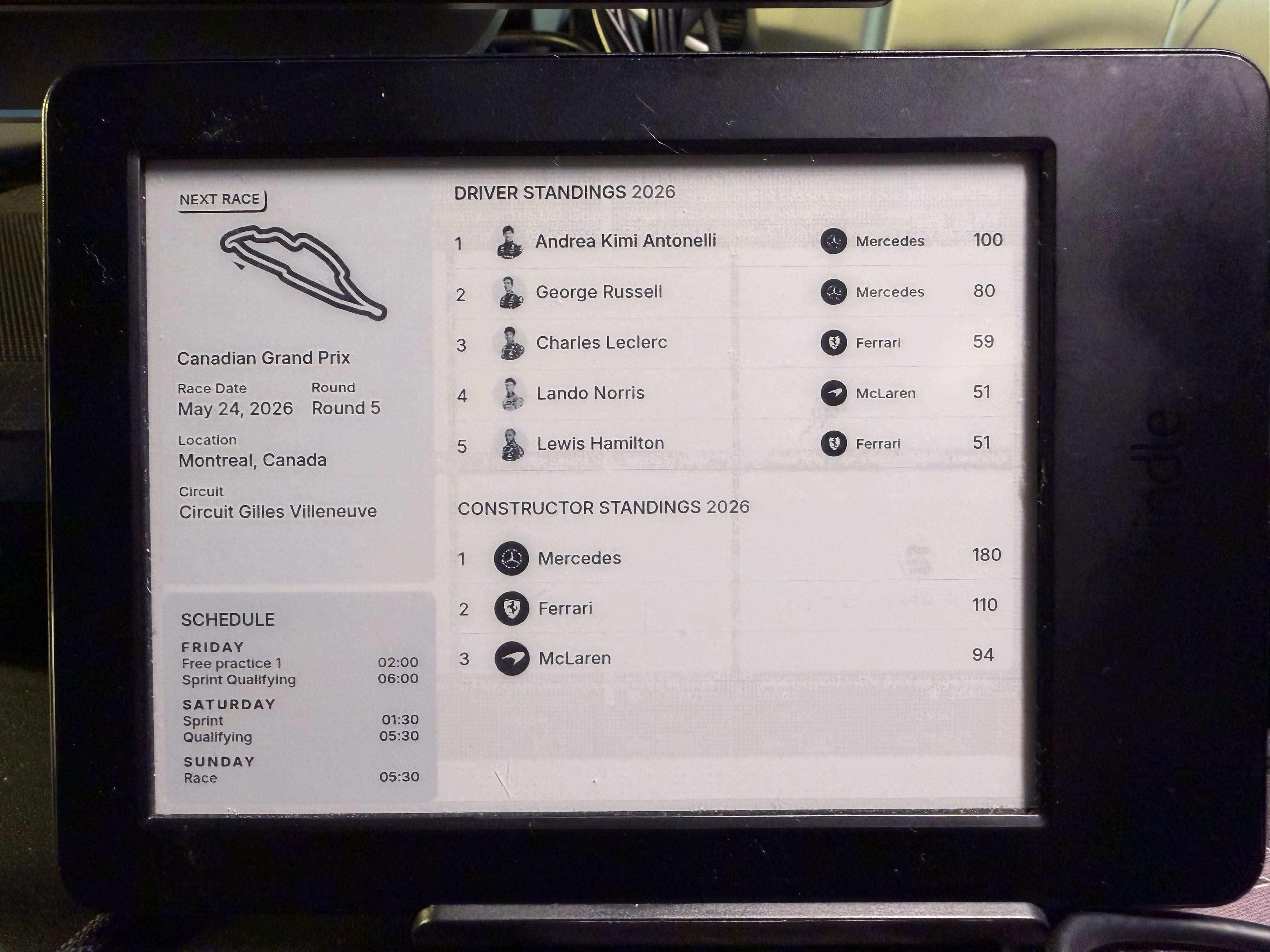
This post is the full walkthrough of how I got there: jailbreaking the Kindle, installing KOReader, getting the TRMNL plugin working, and running a self-hosted TRMNL-compatible server (LaraPaper) in Docker on my NAS. Total cost: zero, since I already had the hardware.
Why a Kindle?
E-ink dashboards are having a moment, and for good reason. Compared to a tablet or small monitor:
- Always-on, zero glare. E-ink is reflective, not emissive. It looks great in direct sunlight and isn’t a light source in a dark room.
- Tiny power draw. A Kindle running a dashboard refreshes infrequently and sips battery; they can easily last a week if setup correctly.
- Reuse. There’s a feeling of satisfaction repurposing old hardware that was not being used and giving it new life.
The trade-off: refresh latency, monochrome (or 16-shade grayscale), and getting it to do anything other than read books takes some setup. That setup is what this post is about.
What we’re building
A high-level picture before diving in:
flowchart LR
    Kindle["Jailbroken Kindle<br/>+ KOReader<br/>+ TRMNL plugin"]
    Server["LaraPaper<br/>(self-hosted server)"]
    Plugins["Plugins<br/>Weather · Calendar · XKCD · ..."]

    Kindle -->|"polls every N min<br/>GET /api/display"| Server
    Server -->|"PNG image URL"| Kindle
    Plugins -->|"rendered HTML"| Server

    style Kindle fill:#f5f5f5,stroke:#333
    style Server fill:#fff3e0,stroke:#e65100
    style Plugins fill:#e8f5e9,stroke:#2e7d32
Three moving parts:
- The Kindle, jailbroken so we can install our own software, running KOReader with the TRMNL plugin.
- A TRMNL-compatible server, in our case LaraPaper running in Docker. This generates the dashboard image based on whatever plugins we’ve configured.
- Plugins (weather, calendar, XKCD, custom HTML, etc.), which the server stitches together into a playlist.
The Kindle does almost nothing — it just polls the server every N minutes, downloads a pre-rendered PNG, and displays it. All the heavy lifting lives on the server.
Part 1: Jailbreaking the Kindle
The jailbreak unlocks the Kindle so you can install non-Amazon software. It doesn’t void anything dramatic — the device still works as a Kindle, you can still buy books, OTA updates can still apply (with one extra step to keep the jailbreak alive).
I won’t reproduce the full procedure here because the KindleModding Wiki is the authoritative source and it gets updated as Amazon ships new firmware. Some key things to know going in:
- Check your firmware version first (Settings → Device options → Device info). The current jailbreak (WinterBreak) doesn’t work on firmware 5.18.1+. If you’re newer than that, you’ll need AdBreak instead, or you’re stuck waiting for a new exploit.
- Three things get installed: the jailbreak itself, the hotfix that survives OTA updates, and KUAL (Kindle Unified Application Launcher), which is the menu system for running custom apps.
- Plan for ~30 minutes the first time, mostly waiting between steps.
The Kindle Modding wiki’s jailbreak guide walks through every step. Follow it through “Installing KUAL & MRPI” and stop there — that’s everything we need for this dashboard project.
Part 2: TRMNL — the protocol, not the product
TRMNL sells a polished e-ink dashboard device with a subscription service. Their hardware is well-designed and the service is reasonably priced, but the most interesting thing about TRMNL is that they open-sourced the protocol and reference server implementations. That means you can:
- BYOD (Bring Your Own Device): use TRMNL’s hosted service with your own hardware (Kindle, ESP32-based display, etc.)
- BYOS (Bring Your Own Server): run a TRMNL-compatible server yourself, with any device
We’re doing the second one. No subscription, no cloud, no recurring cost.
How the protocol works
The TRMNL protocol is intentionally minimal — designed for cheap microcontrollers that wake up briefly, fetch a PNG, display it, and go back to sleep.
sequenceDiagram
    participant Device as Kindle (sleeping)
    participant WiFi as WiFi
    participant Server as LaraPaper
    participant Storage as Image storage
    Note over Device: Wakes up on schedule
    Device->>WiFi: Connect
    Device->>Server: GET /api/display (headers: ID, access-token)
    Note over Server: Identify device by MAC,<br/>look up active playlist,<br/>pick next plugin
    Server->>Storage: Render plugin to PNG
    Server-->>Device: JSON (image_url, refresh_rate, special_function)
    Device->>Server: GET image_url
    Server-->>Device: PNG bytes
    Device->>Device: Render to screen
    Device->>WiFi: Disconnect
    Note over Device: Sleep for refresh_rate seconds
The whole conversation is two HTTP requests. The device sends its MAC address in an ID header and an API key in access-token; the server replies with a JSON envelope containing the URL of the next image to display, how long until the next refresh, and any special instructions (sleep mode, firmware update, etc.).
Architecture in more detail
On the server side, things look like this:
flowchart TB
    subgraph Server["LaraPaper Server"]
        API["/api/display endpoint"]
        DeviceReg["Device Registry<br/>MAC → API key → playlist"]
        Playlist["Playlist Engine<br/>rotates through plugins"]
        Renderer["Image Renderer<br/>HTML → PNG"]
        Cache["Image Cache<br/>generated PNGs"]
    end

    subgraph Plugins["Plugin Ecosystem"]
        Weather["Weather plugin"]
        Calendar["Calendar plugin"]
        XKCD["XKCD plugin"]
        Custom["Custom HTML plugin"]
    end

    Device["Kindle"] -->|1. GET /api/display| API
    API -->|2. Look up device| DeviceReg
    DeviceReg -->|3. Get next plugin| Playlist
    Playlist -->|4. Fetch data| Plugins
    Plugins -->|5. Return HTML| Renderer
    Renderer -->|6. Save PNG| Cache
    Cache -->|7. URL returned| API
    API -->|8. JSON response| Device
    Device -->|9. GET image_url| Cache

    style Server fill:#fff3e0,stroke:#e65100
    style Plugins fill:#e8f5e9,stroke:#2e7d32
    style Device fill:#f5f5f5,stroke:#333
The render step is where the magic happens. Plugins are essentially small HTML templates that fetch live data (weather API, your calendar feed, etc.) and produce a styled page. The server renders that HTML to a PNG at the exact resolution your device expects, often using a headless browser.
This is why the device on its own knows almost nothing about the data it’s showing. The Kindle has no idea what XKCD is. It just downloads an image.
Part 3: KOReader and the TRMNL plugin
KOReader is an open-source document viewer that runs on jailbroken Kindles (and Kobos, and PocketBooks, and Android). For our purposes it serves two roles: it’s the application framework the TRMNL plugin runs inside, and it gives us a lot of useful device-level control that the stock Kindle interface doesn’t.
Install KOReader from the Kindle Modding instructions. After installation, KOReader will appear in KUAL.
Installing the TRMNL plugin
The plugin lives at github.com/usetrmnl/trmnl-koreader. Installation:
- Download the repo as a ZIP, extract it.
- Plug the Kindle into your computer via USB.
- Copy the
trmnl.kopluginfolder intokoreader/plugins/on the Kindle. - Eject the Kindle, launch KOReader, and the plugin should appear under Tools → TRMNL Display.
The BYOS gotcha
The plugin as shipped is configured for trmnl.app — TRMNL’s hosted service, which identifies devices by API key alone. Self-hosted servers like LaraPaper need to know which device is calling, which they determine by the MAC address sent in an ID HTTP header. The stock plugin doesn’t send this header.
There’s a small patch needed to make it work. Open koreader/plugins/trmnl.koplugin/main.lua and add a function that reads the Kindle’s MAC address from the kernel:
function TrmnlDisplay:getMacAddress()
    if self.cached_mac then
        return self.cached_mac
    end

    local interfaces = { "wlan0", "eth0", "mlan0", "wlp2s0" }

    for _, iface in ipairs(interfaces) do
        local path = "/sys/class/net/" .. iface .. "/address"
        local file = io.open(path, "r")
        if file then
            local mac = file:read("*line")
            file:close()
            if mac and mac:match("^%x%x:%x%x:%x%x:%x%x:%x%x:%x%x$") then
                self.cached_mac = mac:upper()
                return self.cached_mac
            end
        end
    end

    return nil
end
Then in the fetchScreenMetadata function, add the ID header to the outgoing request:
local mac_address = self.settings.mac_address or self:getMacAddress() or ""

local request = {
    url = request_url,
    method = "GET",
    headers = {
        ["access-token"] = self.settings.api_key,
        ["ID"] = mac_address,
        ["percent-charged"] = percent_charged,
        ["png-width"] = png_width,
        ["png-height"] = png_height,
        ["rssi"] = "0",
        ["User-Agent"] = self.settings.user_agent,
    },
    -- ... rest of request config
}
That’s it. The plugin will now identify itself properly to any TRMNL-compatible server.
Configuring the plugin
In KOReader: Tools → TRMNL Display → Configure TRMNL. Set:
- Base URL: your server URL, e.g.
http://192.168.1.123:4567(no trailing slash, no/api/display) - API Key: the per-device key your server generates
- Refresh interval: how often to fetch a new screen, in seconds. 900-1800 (15-30 min) is a good default.
Kindle tweaks for a better dashboard experience
A vanilla Kindle is built for reading books, which involves a lot of sleeping. For a dashboard you want the opposite — stay awake, refresh on schedule, never show “Sleeping” overlays. A few changes:
WiFi behaviour. In KOReader → gear → Network:
- Action when WiFi is off: turn on
- Action when done with WiFi: leave on
Setting “leave on” is critical. If WiFi is turned off after each fetch, the Kindle firmware will interpret the idle state as a cue to engage its screensaver, and you’ll see a “Sleeping” overlay drawn over your dashboard until you tap the screen.
Auto-suspend. KOReader → gear → Device → Autosuspend timeout: disabled.
Kindle firmware sleep. Even with KOReader configured to stay awake, the Kindle’s underlying powerd daemon has its own screensaver timer. To disable it, open a terminal (KOReader → Tools → More tools → Terminal emulator) and run:
lipc-set-prop com.lab126.powerd preventScreenSaver 1
Important caveat: this doesn’t persist across reboots. You’ll need to re-run it if you restart the Kindle. There are ways to make it permanent via KUAL scripts, but the manual command is fine if you rarely reboot.
E-ink refresh quality. KOReader → Tools → TRMNL Display → Configure → E-ink Refresh Type: Full. Slower refresh but eliminates ghosting, which matters more on a dashboard than in a book.
Auto-refresh. KOReader → Tools → TRMNL Display → Enable auto-refresh. This kicks off periodic fetches and also prevents KOReader itself from suspending.
Part 4: LaraPaper — the self-hosted server
There are several BYOS implementations in the TRMNL ecosystem. The main options:
- Terminus (
usetrmnl/byos_hanami) — the official Ruby/Hanami reference implementation - LaraPaper — a PHP/Laravel implementation with a polished UI and good plugin selection
- byos_sinatra — minimal Ruby/Sinatra, fewer features but very simple
- trmnl-byos — Rust implementation, niche but lightweight
I tried Terminus first and ended up settling on LaraPaper because its UI for managing devices and playlists was the most pleasant to work with day-to-day. Your mileage may vary — the protocol is the same, so you can swap servers without changing anything on the device.
Running LaraPaper in Docker
LaraPaper publishes a Dockerfile in its repo. The compose file is straightforward:
services:
  app:
    build:
      context: .
      dockerfile: Dockerfile
    ports:
      - "4567:8080"
    environment:
      - PHP_OPCACHE_ENABLE=1
      - TRMNL_PROXY_REFRESH_MINUTES=15
      - DB_DATABASE=database/storage/database.sqlite
    volumes:
      - database:/var/www/html/database/storage
      - storage:/var/www/html/storage/app/public/images/generated
    restart: unless-stopped

volumes:
  database:
  storage:
The key bits:
- Two named volumes for persistence: one for the SQLite database (which holds devices, playlists, plugin configs), one for generated images.
- Port
4567exposed on the host, mapping to the container’s internal8080. restart: unless-stoppedso it survives Docker daemon restarts.
To start it:
docker-compose up -d --build
The first build takes a few minutes (PHP, composer, npm). Subsequent starts are instant.
Adding a device
In the LaraPaper web UI (http://<host>:4567):
- Devices → Add Device
- Fill in:
- Name: anything memorable
- MAC Address: the Kindle’s WiFi MAC (find it in KOReader → Network → Info)
- API Key: generate one with
openssl rand -hex 24on any machine, paste it here - Friendly ID: a short identifier, anything works
- Device Model: pick the matching Kindle generation — this controls the resolution of generated images
- Create Device
Then create a Playlist, assign one or more plugins to it, and assign the playlist to your device.
Watch out for
A few things I learned the hard way:
OrbStack / Docker Desktop “pause when idle” features. If you’re running on a Mac with OrbStack or Docker Desktop, both have a “pause when idle” setting that suspends the container VM after inactivity. This means the first request after a quiet period takes 2-3 minutes to wake the VM. Disable this setting if you’re using LaraPaper as a server — it needs to be reachable on demand.
macOS Application Firewall blocks incoming connections to unknown apps by default. If your Mac is the server and other devices can’t reach LaraPaper, this is likely why. Either disable the firewall for testing or add an explicit allow rule.
mDNS / .local resolution doesn’t work reliably from Kindles. If you’ve registered your server as something.local, use the IP address instead in the plugin’s Base URL field.
Part 5: Migrating to a NAS
After running LaraPaper on my Mac for a week, I moved it to my Synology NAS so it could run 24⁄7 without tying up the desktop. The migration was a clean tarball-and-restore of the two named volumes:
flowchart LR
    subgraph Source["Mac Studio (source)"]
        SrcDB[("larapaper_database<br/>SQLite DB")]
        SrcImg[("larapaper_storage<br/>Generated images")]
    end

    subgraph Transit["Tarballs"]
        TarDB["database.tar.gz"]
        TarImg["storage.tar.gz"]
    end

    subgraph Dest["Synology NAS (destination)"]
        DstDB[("larapaper_database")]
        DstImg[("larapaper_storage")]
    end

    SrcDB -->|"docker run alpine<br/>tar czf"| TarDB
    SrcImg -->|"docker run alpine<br/>tar czf"| TarImg
    TarDB -->|"scp"| TarDB2["database.tar.gz"]
    TarImg -->|"scp"| TarImg2["storage.tar.gz"]
    TarDB2 -->|"docker run alpine<br/>tar xzf"| DstDB
    TarImg2 -->|"docker run alpine<br/>tar xzf"| DstImg
The pattern for dumping a Docker named volume to a tarball without stopping or installing anything:
docker run --rm \
  -v larapaper_database:/data:ro \
  -v "$(pwd)":/backup \
  alpine \
  tar czf /backup/larapaper_database.tar.gz -C /data .
This spins up a temporary Alpine container, mounts the volume read-only, mounts your current directory as /backup, and tars the volume contents to a file in your local directory. Same pattern in reverse to restore on the new host, with the read-only flag dropped.
scp the tarballs and the source directory to the NAS, restore the volumes, docker-compose up -d --build, and you’re back online.
A subtle thing about Laravel apps specifically: the .env file contains APP_KEY, which is used to encrypt session data and some at-rest fields. Don’t forget to copy it, or the new instance may not be able to decrypt existing data.
Where this lands
End state: a 10-year-old Kindle, sitting on my desk, cycling through current weather, my upcoming calendar, MotoGP race weekends, and the daily XKCD comic. It refreshes every 15 minutes, costs nothing to run beyond the trickle of electricity the Kindle draws, and looks like a piece of paper from across the room.
flowchart LR
    subgraph Home["Home network"]
        Kindle["📖 Kindle<br/>polls every 15min"]
        NAS["🗄️ Synology NAS<br/>LaraPaper in Docker"]
    end

    subgraph Internet["Internet"]
        WeatherAPI["☁️ Weather API"]
        CalAPI["📅 Calendar feed"]
        XKCDAPI["🎨 XKCD RSS"]
    end

    Kindle <-->|"HTTP /api/display"| NAS
    NAS <-->|"plugin data fetches"| WeatherAPI
    NAS <-->|"plugin data fetches"| CalAPI
    NAS <-->|"plugin data fetches"| XKCDAPI

    style Kindle fill:#f5f5f5,stroke:#333
    style NAS fill:#fff3e0,stroke:#e65100
There are a few directions to take this further:
- Custom plugins. LaraPaper’s plugin format is basically a Twig template plus a config schema. Writing a custom plugin for, say, your home’s energy usage or a self-hosted RSS reader is a couple of hours of work.
- Multiple devices. The same server can drive many devices, each with its own playlist. Useful if you want a different dashboard in the kitchen vs. the office.
- Better mounting. Currently mine is in a 3D-printed holder; an actual frame is on my to-do list.
But mostly I’m happy that an old, forgotten device is now genuinely useful again. There’s something satisfying about that — taking a piece of hardware Amazon would consider obsolete and using it to do something they never intended.
Useful links
- TRMNL — the original product and the open-source protocol
- KindleModding Wiki — jailbreak guides, KUAL, hotfix
- KOReader — the document viewer that hosts the plugin
- TRMNL KOReader plugin — what runs on the Kindle
- LaraPaper — the PHP/Laravel BYOS implementation
- Terminus — the official Ruby BYOS implementation
- BYOS Django — Python alternative
Tags: diy , hacking , lua , programming