Nayan: Give your computer vision, and then play Chess with it
A computer vision Chess companion with Go, OpenCV and Stockfish
Published on Feb 21 2026 at 10:41pm
Nayan (meaning “vision” in Hindi) is a chess companion that watches a physical chessboard through a webcam, detects the board and pieces using computer vision, and recommends moves by consulting a local Stockfish engine. It bridges the physical and virtual worlds — you play on a real board with real pieces, while an AI assistant watches and plays with you in real time, complete with voice commentary.
The project’s source code is available at Nayan (Github)
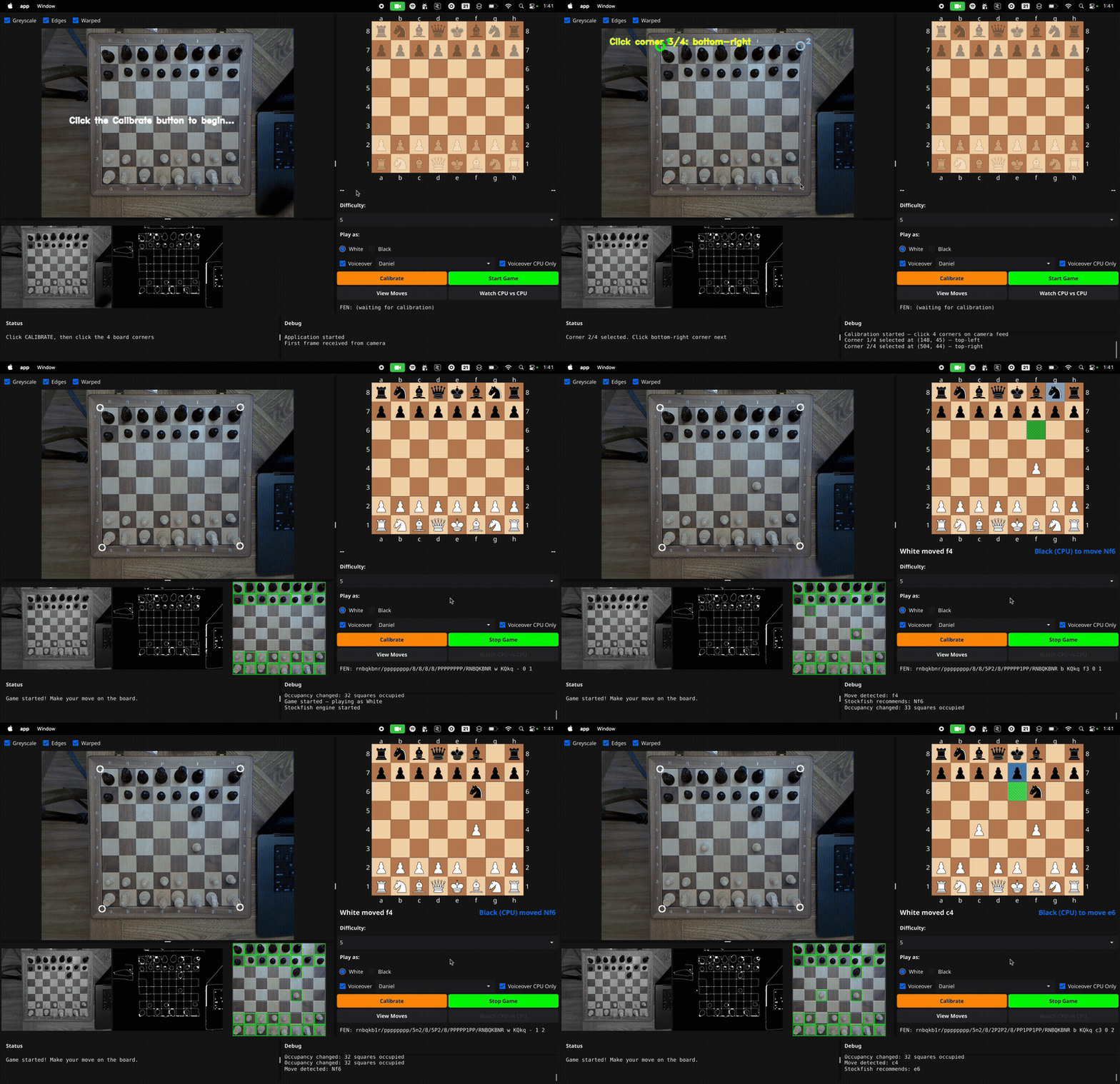
This post walks through how Nayan works, the architecture behind it, the challenges of building a real-time vision-based chess system, and where the project is headed.
The Problem
Playing chess against a computer usually means staring at a screen and clicking squares. Playing on a physical board is more satisfying, but you lose access to engine analysis. Nayan solves this by observing a physical board through a webcam and maintaining a synchronised digital representation. The engine analyses the digital board; you make moves on the physical one.
The key insight that makes this tractable: you don’t need to recognise piece types. If you know the starting position and can detect which squares are occupied vs. empty, you can infer every move by comparing the observed occupancy against all legal moves in the current position. The chess rules engine does the disambiguation for you.
High-Level Architecture
graph TB
    subgraph Physical World
        CAM[Webcam<br/>800x600]
        BOARD[Physical Chessboard]
    end

    subgraph Vision Pipeline
        PRE[Preprocessing<br/>Grey → Blur → Canny → Dilate]
        WARP[Perspective Warp<br/>to 800x800 top-down]
        OCC[Occupancy Detection<br/>Variance + Edge analysis]
    end

    subgraph Game Logic
        INFER[Move Inference<br/>Match occupancy to legal moves]
        STATE[GameState<br/>notnil/chess library]
        FEN[FEN Generation]
    end

    subgraph Engine
        SF[Stockfish Binary<br/>UCI Protocol]
    end

    subgraph UI - Fyne
        FEED[Camera Feed<br/>VideoDisplay widget]
        DEBUG[Debug Views<br/>Grey / Edges / Warped]
        VBOARD[Virtual Board<br/>BoardWidget]
        CTRL[Controls<br/>Calibrate / Start / Voiceover]
        VO[Voice-Over<br/>macOS say command]
    end

    CAM -->|Raw frames| PRE
    PRE --> WARP
    WARP --> OCC
    OCC -->|8x8 bool grid| INFER
    INFER --> STATE
    STATE -->|FEN string| SF
    SF -->|Best move| STATE
    STATE --> VBOARD
    STATE --> FEN
    CAM --> FEED
    PRE --> DEBUG
    SF --> VO
    STATE --> CTRL
Project Structure
nayan/
├── cmd/app/
│   ├── main.go          # Entry point, orchestration, UI layout
│   └── Funk.aiff        # Embedded alert sound
├── pkg/
│   ├── camera/
│   │   └── camera.go    # Webcam capture via GoCV
│   ├── vision/
│   │   ├── processor.go # Preprocessing, board detection, perspective warp
│   │   ├── squares.go   # Per-square occupancy analysis
│   │   └── geometry.go  # Euclidean distance helper
│   ├── chess/
│   │   ├── board.go     # GameState, move inference, coordinate mapping
│   │   └── board_test.go
│   ├── engine/
│   │   └── stockfish.go # UCI protocol wrapper
│   └── ui/
│       ├── board.go     # Virtual chessboard widget
│       ├── video.go     # Live video display widget
│       ├── assets.go    # Embedded SVG piece images
│       └── pieces/      # 12 SVG files (wK, wQ, ... bP)
├── go.mod
├── go.sum
└── CLAUDE.md
The Vision Pipeline
The vision system runs once per frame (~30 FPS) and transforms a raw webcam image into an 8x8 boolean occupancy grid.
Step 1: Manual Calibration
Automatic board detection via contour analysis was the original approach — find the largest quadrilateral in the edge map — but it proved unreliable in practice (more on this in the Challenges section). The current system uses manual 4-corner calibration: the user clicks the four corners of the board on the camera feed, and the system locks those corners for perspective correction.
sequenceDiagram
    participant U as User
    participant UI as Camera Feed
    participant V as Vision System

    U->>UI: Clicks "Calibrate"
    UI->>U: "Click corner 1/4: top-left"
    U->>UI: Clicks top-left corner
    UI->>U: "Click corner 2/4: top-right"
    U->>UI: Clicks top-right corner
    UI->>U: "Click corner 3/4: bottom-right"
    U->>UI: Clicks bottom-right corner
    UI->>U: "Click corner 4/4: bottom-left"
    U->>UI: Clicks bottom-left corner
    V->>V: ReorderPoints() — sort TL, TR, BR, BL
    V->>UI: "Calibration complete!"
    Note over V: Warping begins every frame
The ReorderPoints function sorts the four clicked points into a canonical order (top-left, top-right, bottom-right, bottom-left) using a sum/difference heuristic: the top-left corner has the smallest x+y, the bottom-right has the largest, and so on.
Step 2: Preprocessing
Each frame passes through a standard OpenCV preprocessing pipeline:
- Greyscale conversion — removes colour information, reduces computation
- Gaussian blur (7x7 kernel) — suppresses internal square textures and noise
- Canny edge detection (thresholds: 50, 150) — finds strong edges
- Morphological closing (5x5 kernel) — seals small gaps in the board outline
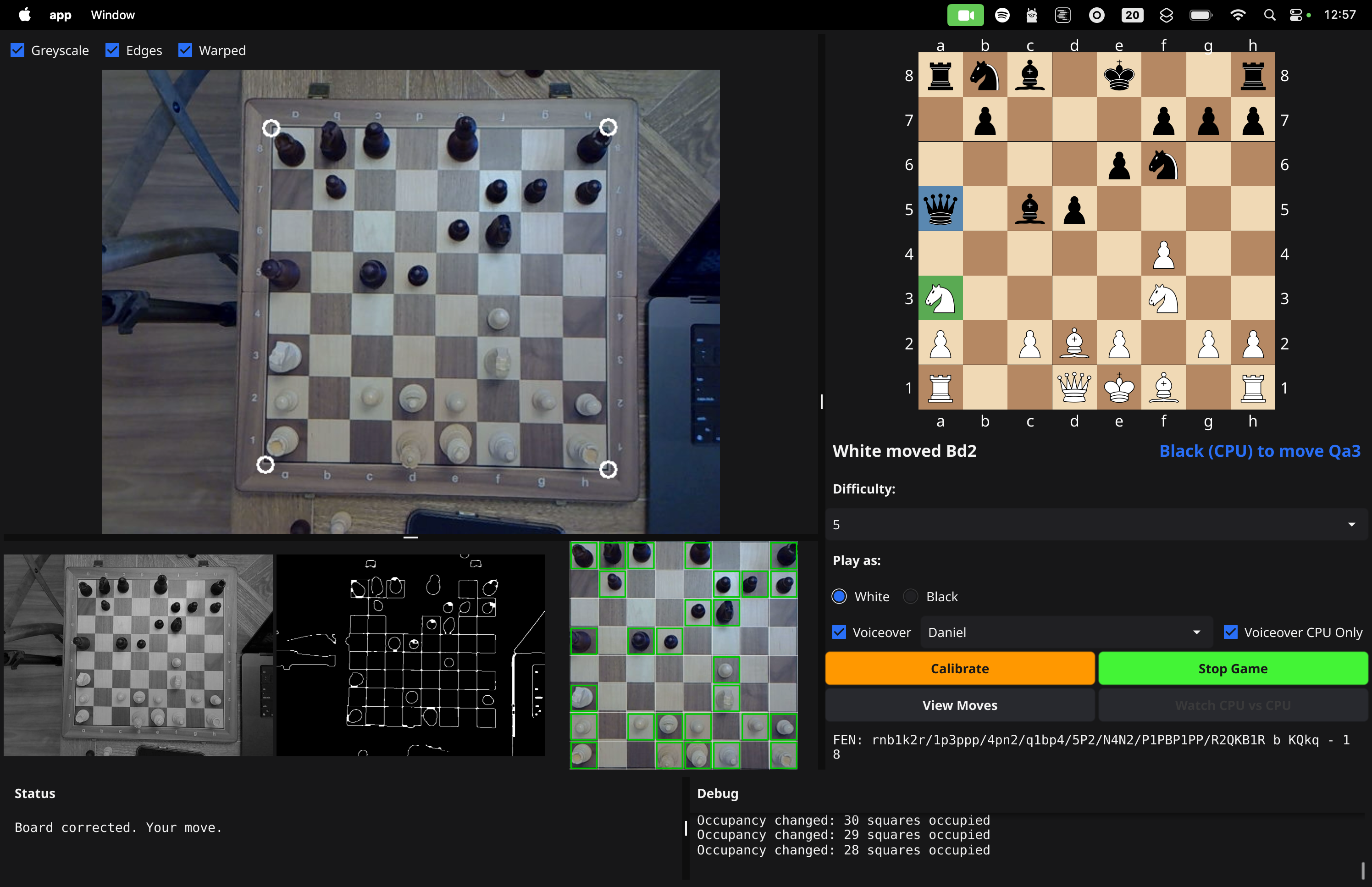
These intermediate stages are displayed in three debug views below the main camera feed, letting the user see exactly what the vision system sees.
Step 3: Perspective Warp
Using the four calibrated corners, WarpBoard applies a perspective transform to produce an 800x800 pixel top-down view of the board. Each of the 64 squares becomes a clean 100x100 pixel region, regardless of the camera angle.
Camera view (perspective)          Warped view (top-down)
┌─────────────────┐               ┌────────────────────┐
│  ╱──────────╲   │               │ ┌──┬──┬──┬──┬──┐   │
│ ╱            ╲  │    warp       │ ├──┼──┼──┼──┼──┤   │
│╱   Chessboard ╲ │  ────────►    │ ├──┼──┼──┼──┼──┤   │
│╲              ╱ │               │ ├──┼──┼──┼──┼──┤   │
│ ╲            ╱  │               │ ├──┼──┼──┼──┼──┤   │
│  ╲──────────╱   │               │ └──┴──┴──┴──┴──┘   │
└─────────────────┘               └────────────────────┘
Step 4: Occupancy Detection
For each of the 64 squares, the system determines “occupied” or “empty” using a dual-signal approach:
Variance signal: Compute the standard deviation of pixel intensities within the square (with a 20px inset to avoid grid lines). Occupied squares have higher variance because pieces create light/dark patterns. Threshold:
variance > 20.Edge density signal: Run Canny edge detection on each square and calculate the percentage of edge pixels. Pieces create more edges than empty squares. Threshold:
edge% > 6.0%.
A square is marked occupied if either signal exceeds its threshold. This dual approach is more robust than either signal alone — dark pieces on dark squares might have low variance but high edge density, and vice versa.
  a       b       c       d       e       f       g       h
8 X58/5  X26/6  X48/4  . 8/1  X29/3  . 7/0  .12/0  X34/5
7 .10/0  X71/7  . 6/0  . 5/0  . 7/0  X96/4  X46/7  X72/6
6 . 5/0  . 8/0  . 7/0  . 7/0  X75/8  X39/5  . 7/0  .12/0
...
Legend: X=occupied .=empty  (variance/edge%)
The Move Inference Engine
This is the core insight that makes the project work without piece recognition.
The Algorithm
Given the current game state (which tracks all pieces) and the observed 8x8 occupancy grid from the camera:
- Get all legal moves from the current position (typically 20-40 moves)
- For each legal move, simulate the resulting position
- Generate the occupancy grid for each simulated position
- Find which simulated occupancy matches the observed camera occupancy
- Return the matching move
flowchart LR
    OBS[Observed<br/>Occupancy Grid]
    POS[Current<br/>Position]
    POS -->|ValidMoves| M1[e2-e4]
    POS -->|ValidMoves| M2[d2-d4]
    POS -->|ValidMoves| M3[Nf3]
    POS -->|ValidMoves| MN[...]
    M1 -->|Simulate| S1[Occupancy<br/>after e4]
    M2 -->|Simulate| S2[Occupancy<br/>after d4]
    M3 -->|Simulate| S3[Occupancy<br/>after Nf3]
    S1 --> CMP{Compare}
    S2 --> CMP
    S3 --> CMP
    OBS --> CMP
    CMP -->|Match found| RESULT[Inferred Move:<br/>e2-e4]
This naturally handles complex moves:
- Captures: One square vacated, another stays occupied (piece replaced)
- Castling: Two pieces move simultaneously — the occupancy pattern is unique
- En passant: Three squares change — the captured pawn’s square empties too
When multiple moves produce the same occupancy (rare, mainly pawn promotions), queen promotion is preferred.
CPU Move Enforcement
When it’s the CPU’s turn, rather than inferring from all legal moves, the system verifies the board against the specific recommended move. It simulates the expected occupancy after the Stockfish recommendation and compares directly. This avoids ambiguity when multiple captures from the same square produce identical occupancy patterns (e.g., a queen that can capture on two different squares).
Stability and Settling
Raw occupancy changes every time a hand enters the frame. To avoid false detections:
- Stability threshold: The same occupancy diff must persist for 5 consecutive frames before it’s considered real
- Settle period: After stability is reached, wait an additional 2 seconds before inferring the move
- If the occupancy changes during settling, the counter resets
This two-phase approach filters out transient noise from hand movement while keeping response time reasonable.
Stockfish Integration
Stockfish is called as a local binary via the UCI (Universal Chess Interface) protocol. The engine package wraps the notnil/chess/uci library:
sequenceDiagram
    participant App as Nayan
    participant SF as Stockfish Binary

    App->>SF: uci
    SF-->>App: uciok
    App->>SF: isready
    SF-->>App: readyok
    App->>SF: ucinewgame

    loop Each CPU Turn
        App->>SF: position startpos moves e2e4 e7e5 ...
        App->>SF: go depth 10
        SF-->>App: bestmove g1f3
        App->>App: Highlight Nf3 on virtual board
        App->>App: Speak "Black knight to move to f3"
    end
The difficulty dropdown (1-10) maps directly to Stockfish search depth: depth = difficulty * 2, giving a range of 2-20 ply. Lower depths produce weaker play; higher depths take longer but play stronger.
The UI
Nayan uses Fyne, a cross-platform GUI toolkit for Go. The layout is a side-by-side split:
Custom Widgets
BoardWidget — A lichess-style chessboard rendered entirely with Fyne canvas primitives. It pre-allocates 192 canvas objects (64 squares + 64 highlight overlays + 64 piece images) and updates them in place for performance. Pieces are embedded SVG files scaled smoothly. The board supports highlight overlays for:
- Move highlights: Blue (from-square) and green (to-square)
- Check indicator: Red overlay on the king in check
- Invalid move flash: Red overlay toggling every 2 seconds on mismatched squares
VideoDisplay — A custom Fyne widget that displays live video frames with thread-safe updates via mutex. It implements fyne.Tappable with coordinate mapping from widget-space to image-space (accounting for aspect-ratio scaling), enabling click-to-calibrate functionality.
Voice-Over Commentary
Nayan provides audible commentary using the macOS say command. When the CPU recommends a move, you hear it spoken aloud — useful when your eyes are on the physical board, not the screen.
Commentary Generation
The moveCommentary function builds natural-language phrases with two tenses:
| Scenario | Example |
|---|---|
| CPU pre-move | “Black knight to move to f 3” |
| CPU capture | “White bishop to take d 5” |
| Human post-move | “White pawn to e 4” |
| Human capture | “Black knight takes f 3” |
| Castling (pre) | “White to castle king side” |
| Castling (post) | “Black castles queen side” |
| Check | ”… Check!” |
| Game over | “White wins (checkmate)” |
Speech Management
A mutex-protected speakCmd variable ensures only one utterance plays at a time. New speech kills any in-progress say process before starting. CPU recommendations repeat every 10 seconds until the move is made, serving as a gentle reminder.
Controls
- Voiceover checkbox — master enable/disable
- Voice selector — populated at startup by parsing
say -v ?output - Voiceover CPU Only — when checked (default), only CPU moves are announced
Game Flow
stateDiagram-v2
    [*] --> PreGame: App launches

    PreGame --> Calibrating: Click "Calibrate"
    Calibrating --> PreGame: 4 corners clicked

    PreGame --> Playing: Click "Start Game"<br/>(requires calibration)

    Playing --> Playing: Human move detected
    Playing --> Playing: CPU move recommended
    Playing --> Playing: Invalid move → alert
    Playing --> GameOver: Checkmate / Draw
    Playing --> PreGame: Click "Stop Game"

    PreGame --> CpuVsCpu: Click "CPU vs CPU"
    CpuVsCpu --> GameOver: Checkmate / Draw
    CpuVsCpu --> PreGame: Click "Stop"

    GameOver --> PreGame: Reset board
Invalid Move Handling
When the vision system detects a board state that doesn’t correspond to any legal move (or doesn’t match the CPU’s recommendation):
- Visual: Differing squares flash red on the virtual board (2-second toggle cycle)
- Audio: An embedded alert sound (Funk.aiff, compiled into the binary) plays immediately, then repeats every 4 seconds
- Voice: “Invalid move” is spoken each time the squares flash
- Recovery: When the board is physically corrected (occupancy returns to expected), alerts stop and the Stockfish recommendation highlights are restored
Challenges
Camera Angle and Lighting
The biggest challenge is getting reliable occupancy detection across varying conditions. Shadows from pieces, uneven lighting, and reflections on glossy boards all affect the variance and edge signals. The dual-signal approach (variance OR edge density) helps, but thresholds need tuning for each physical setup.
Mounting the camera directly above the board (top-down) gives the cleanest perspective warp, but it’s not always practical. Angled views introduce perspective distortion that the warp corrects, but pieces at the far edge of the board appear smaller and are harder to detect.
Hand Interference
Every time a player reaches over the board, the occupancy changes dramatically for several frames. The stability threshold (5 consecutive identical frames) and settle period (2 additional seconds) handle this well, but there’s an inherent tradeoff between responsiveness and reliability.
Automatic Board Detection
The original design attempted automatic board detection via contour analysis — find the largest quadrilateral in the edge-detected image. This worked in controlled conditions but failed when:
- The table surface had similar-contrast edges
- Nearby objects created competing quadrilaterals
- Lighting created strong shadows that broke the contour
- Pieces near the edge disrupted the board outline
Manual 4-corner calibration proved far more reliable and is the current approach.
Occupancy Ambiguity
Some board positions create ambiguous occupancy patterns where multiple legal moves produce identical 8x8 occupancy grids. This turned out to be more common than initially expected.
The problem in practice: Consider a white queen on e2, a black pawn on e5, and a black knight on h5. The queen can legally capture either piece (Qxe5 or Qxh5). Both captures produce the exact same occupancy change — e2 becomes empty, and the target square remains occupied (the queen replaces the captured piece). With only occupied/empty information, InferMove has no way to distinguish between the two moves and may return the wrong one.
This isn’t limited to exotic positions. Any time a piece can capture on two different squares from the same origin, the occupancy grid is identical for both captures. In the example above, the system guessed Qxh5 when the human actually played Qxe5 — the resulting game state was corrupted from that point forward.
Solution for CPU moves: Bypass InferMove entirely. When the CPU recommends a move, the system simulates the specific recommended move’s resulting occupancy via OccupancyAfterMove(rec) and compares it directly against the observed board. This is an exact match — no ambiguity possible.
Solution for human moves — piece colour detection: Since occupancy alone can’t disambiguate, the system uses a second signal: piece brightness. White pieces are physically brighter than black pieces. After the move is made, the system scans the mean greyscale brightness of each square’s centre region (ScanBrightness in the vision package). The InferMoveWithColor function then scores each ambiguous candidate by checking whether the destination square’s brightness matches the moving piece’s colour:
- If a white piece moved, the destination should be brighter → higher brightness scores better
- If a black piece moved, the destination should be darker → lower brightness (inverted:
255 - b) scores better
In the Qxe5 vs Qxh5 example: after the white queen captures on e5, square e5 reads ~180 brightness (white piece) while h5 reads ~80 (black knight still there). The brightness signal correctly picks Qxe5 without needing piece type recognition or user intervention.
Before move:            After Qxe5:             Brightness signal:
. . . . . . . .        . . . . . . . .
. . . . p . . n        . . . . Q . . n         e5: 180 (bright = white piece)
. . . . . . . .        . . . . . . . .         h5:  80 (dark = black piece)
. . . . Q . . .  →     . . . . . . . .         → White queen moved → pick
. . . . . . . .        . . . . . . . .            highest brightness = e5 ✓
This approach is elegant because it requires no piece recognition model — just a simple mean brightness comparison on squares that are already being analysed. The relative comparison (brighter vs darker) is robust across different lighting conditions because white and black pieces always have significant contrast between them.
Libraries, Tools, and Assets
Go Libraries
| Library | Purpose |
|---|---|
| GoCV (v0.43) | OpenCV bindings — all image processing, edge detection, perspective transforms |
| Fyne (v2.7) | Cross-platform GUI — windows, widgets, canvas rendering, event handling |
| notnil/chess (v1.10) | Chess game logic — move generation, validation, FEN, algebraic notation |
External Tools
| Tool | Purpose |
|---|---|
| OpenCV | Native computer vision library (installed via Homebrew on macOS) |
| Stockfish | Chess engine binary (expected on PATH) |
macOS say |
Text-to-speech for voice commentary |
macOS afplay |
Audio playback for alert sounds |
Assets
- 12 SVG piece images — Standard chess piece icons, obtained from https://commons.wikimedia.org/wiki/Category:SVG_chess_pieces
- Funk.aiff — Alert sound for invalid moves, from MacOS system folder
Future Ideas
Piece Recognition
The current system only detects occupied vs. empty. Adding piece type recognition would enable: - Starting from arbitrary positions (not just the opening) - Detecting when pieces are placed on wrong squares - More informative debug overlays
Approaches being considered: a lightweight MobileNet model trained on chess piece images, or template matching against known piece silhouettes from the top-down view.
Cross-Platform Support
Voice-over currently depends on macOS say and afplay. Abstracting these behind an interface would enable Linux (espeak, aplay) and Windows (SAPI) support.
Position Setup Mode
Allow the user to set up an arbitrary position by placing pieces and having the system recognise them, rather than always starting from the standard opening position.
Opening Book Integration
Display the name of the opening being played (e.g., “Italian Game: Giuoco Piano”) based on the move sequence, adding an educational dimension.
Move Evaluation
Show Stockfish’s evaluation score (centipawns or win probability) alongside the recommended move, so the player can understand how much better or worse their position is.
Cloud Analysis
Send the game PGN to a cloud service for deeper post-game analysis, blunder detection, and improvement suggestions.
Conclusion
Nayan demonstrates that you can build a surprisingly capable physical-digital chess bridge with off-the-shelf tools: a webcam, OpenCV for vision, a chess library for rules, and Stockfish for analysis. The key architectural insight — inferring moves from occupancy changes rather than recognising piece types — dramatically simplifies the vision problem while still supporting the full complexity of chess, including castling, en passant, and promotions.
The project was a learning exercise for me in computer vision with Go, and every component was built incrementally: first get the camera working, then detect the board, then detect occupancy, then infer moves, then add the engine, then add the UI, then add voice. Each layer builds on the last, and each layer taught me something new about the challenges of bridging physical and digital worlds.
Tags: image processing , computer vision , golang , programming , projects